 TR
TR GB
GB RU
RU DE
DE AZ
AZA bulk administration guide for schools and corporate human resources departments. Before you begin, complete the checklist below step by step. Answers to frequently asked questions and screenshots are provided under each step.
1Add our email addresses as safe senders
info@characterix.netOur main address for all communication and correspondence.info@characterix.globalUsed for system notifications only. Please do not send emails to this address.If you can't find our emails, check your Spam / Junk folder first.
2Logging in to the panel and creating your password
You log in with the email address registered for your school or organization.
- Go to characterix.global and click Panel Login.
- Select Forgot My Password.
- Enter the email address registered in the system.
- Create your new password using the link in the email you receive.
- Log in to the panel with your new password.
3Fill in the report settings file (Excel)
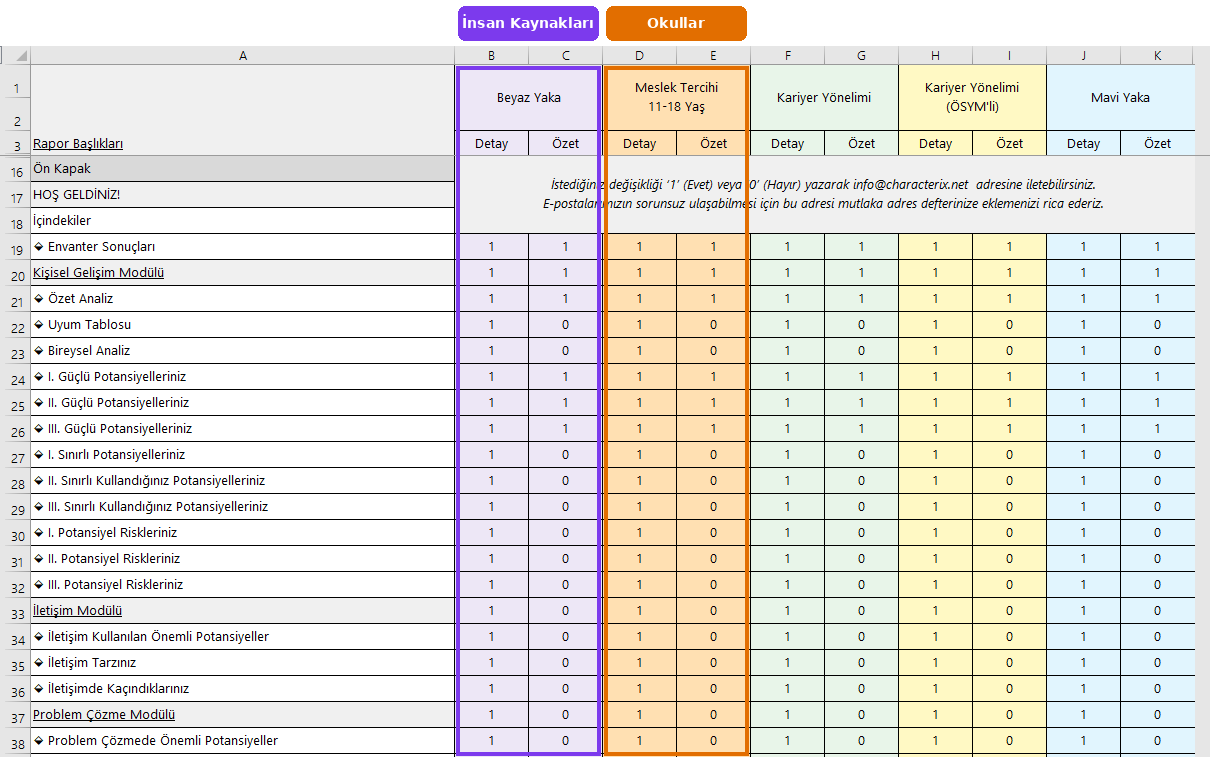
- Schools (student reports): only the Meslek Tercihi 11-18 Yaş (Career Choice, ages 11–18) columns
- Human resources: only the Beyaz Yaka (White Collar) columns
How to fill it in
- Open the file and click Enable Content in the yellow warning bar at the top.
- You will see a settings screen containing only 1 and 0 values (as in the image).
- In your column, enter 1 (Yes) for the settings you want and 0 (No) for those you don't.
- Save the file and send it to info@characterix.net.
- If the yellow bar doesn't appear, or you see a red "Security Risk – macros blocked" warning: close the file, right-click it and open Properties, tick the Unblock box at the bottom, click OK and open the file again.
- Don't save the file in a different format (e.g. .xlsx); it must remain .xlsm.
- Invitations cannot be sent before the settings file and participant list have been checked. For this reason, sending is not possible on the same day you send the Excel file; the earliest sending time is the following day.
- In your sending request, specify the time as well as the date (e.g. "16 October, 10:00"). You can also simply write "Send as soon as it's ready".
- Bulk sending starts after you approve your settings, so please review them carefully before approving.
- Retroactive changes to reports are only possible through a software operation, so we do not make retroactive changes after sending.
4How does the sending process work?
"When we're ready to start, will we receive a link from you to forward to participants (students, candidates or employees)?"
You don't need to wait for a separate link:
- In bulk administration, invitation emails are sent only by characterIX®.
- Everything else runs automatically: the participant completes the inventory, the report is generated and sent according to your report settings.
- You track the whole process in the panel: you can see in real time who was invited, who has completed and who hasn't started yet.
5Who received what? Correcting a wrong email address
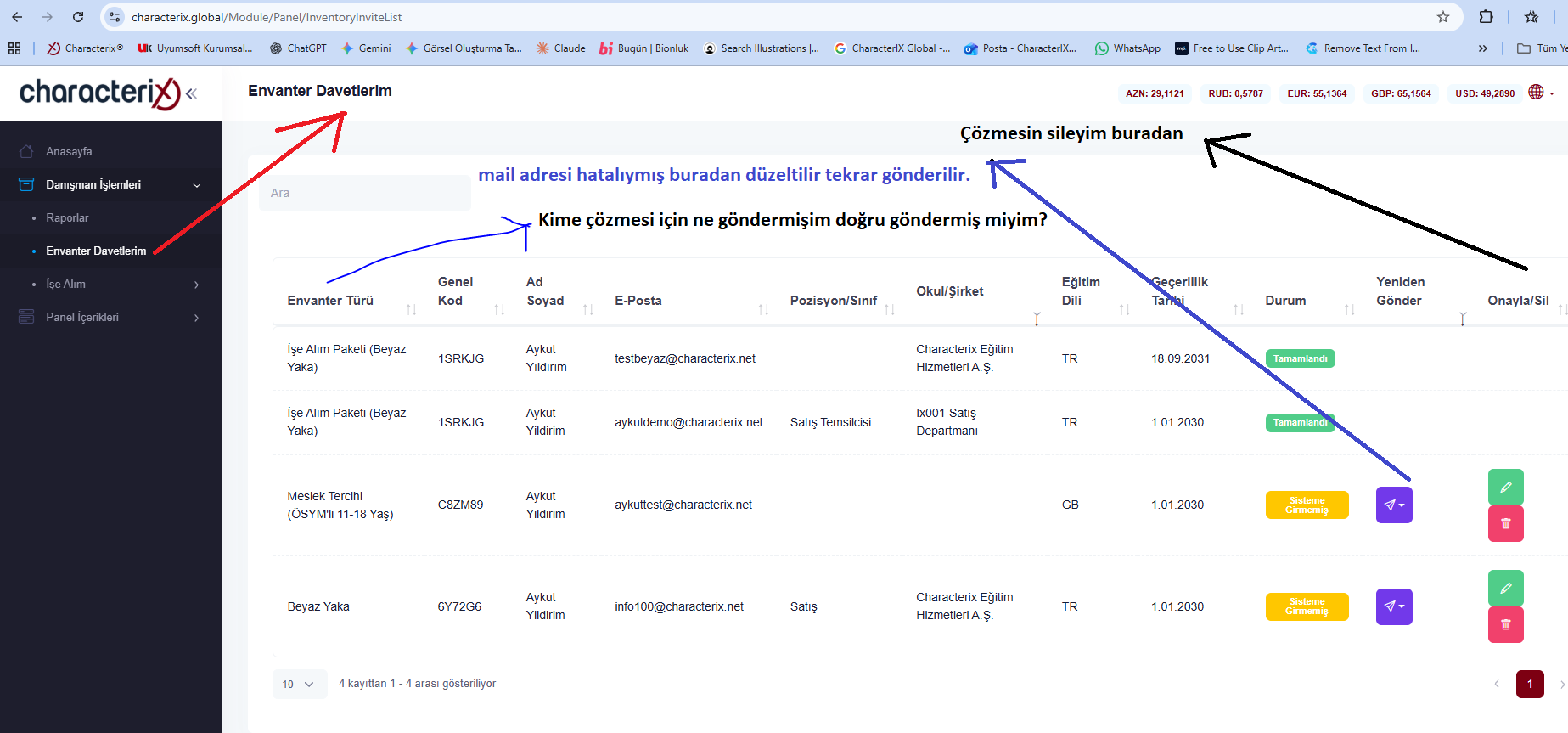
From the left menu, open Consultant Operations → My Inventory Invitations. Here you can see each invitation's inventory type, code, person, email address and status.
| What you see | Meaning / What to do |
|---|---|
| Completed | The participant has finished the inventory and the report has been generated. |
| Not Started | The participant hasn't started or finished yet. Check the email address and send a reminder if needed. |
| ✎ Edit | Correct a wrong email address or change the validity date here. |
| ➤ Resend | Resend the invitation after a correction or if it didn't arrive. |
| 🗑 Delete | You can only delete invitations you sent yourself. Since bulk invitations are sent by characterIX®, you cannot delete them. |
6Accessing reports in the panel
Even if a report email doesn't reach you, the report isn't lost. You can view all reports on the Consultant Operations → Reports page.
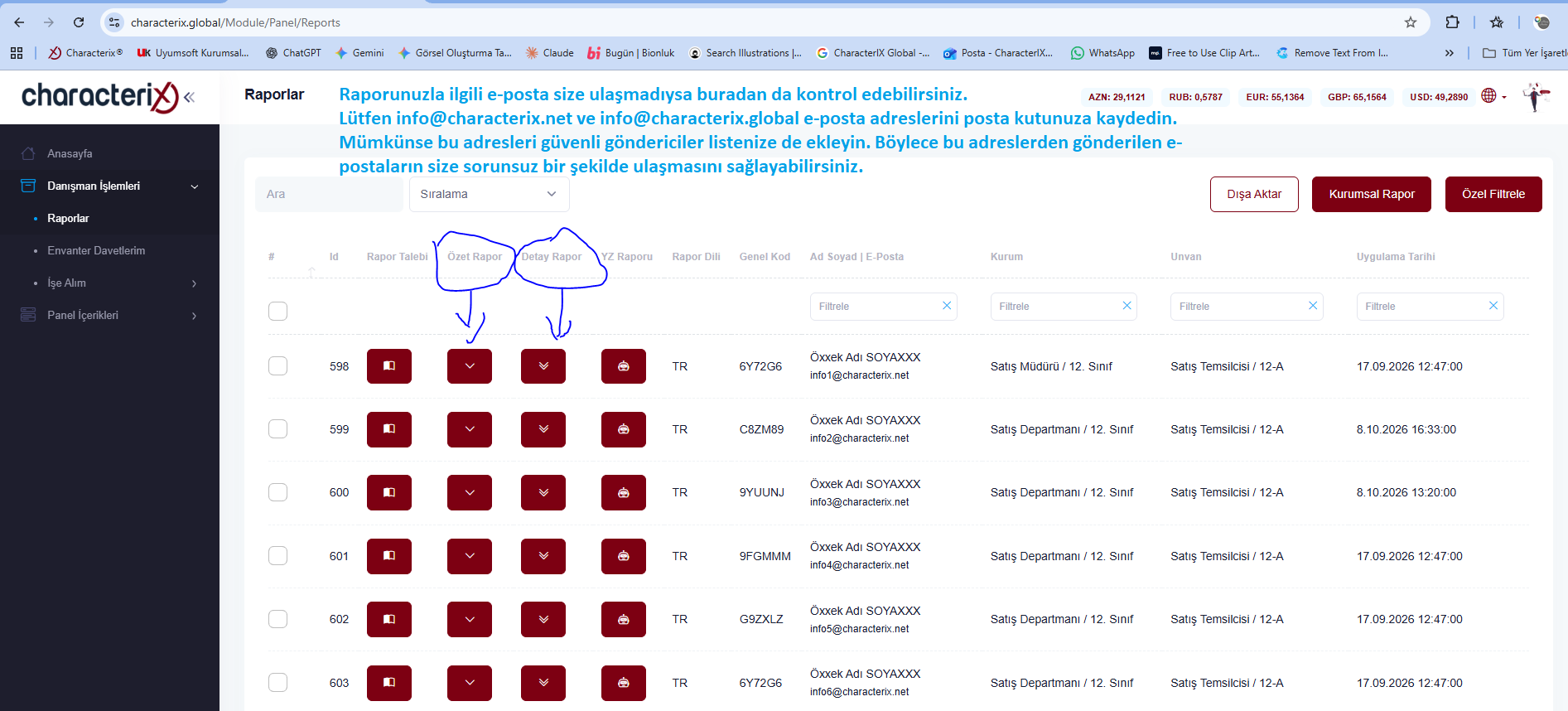
- ⌄ The Summary Report button opens the short report.
- ︾ The Detailed Report button opens the full report.
- Use the Search box and column filters at the top to search by name, email or organization.
Getting a report in another language
Use the ▣ Report Request button on the left of the row to generate the report in a new language. For example, if you select GB for a Turkish report, the system will send the English version in about 15 minutes. Reports are available in 5 languages.
- A report that has already been generated is not regenerated in the same language.
- Reports in another language can be requested within 30 days. Older reports cannot be generated in a different language.
7Read the guidance section in the report
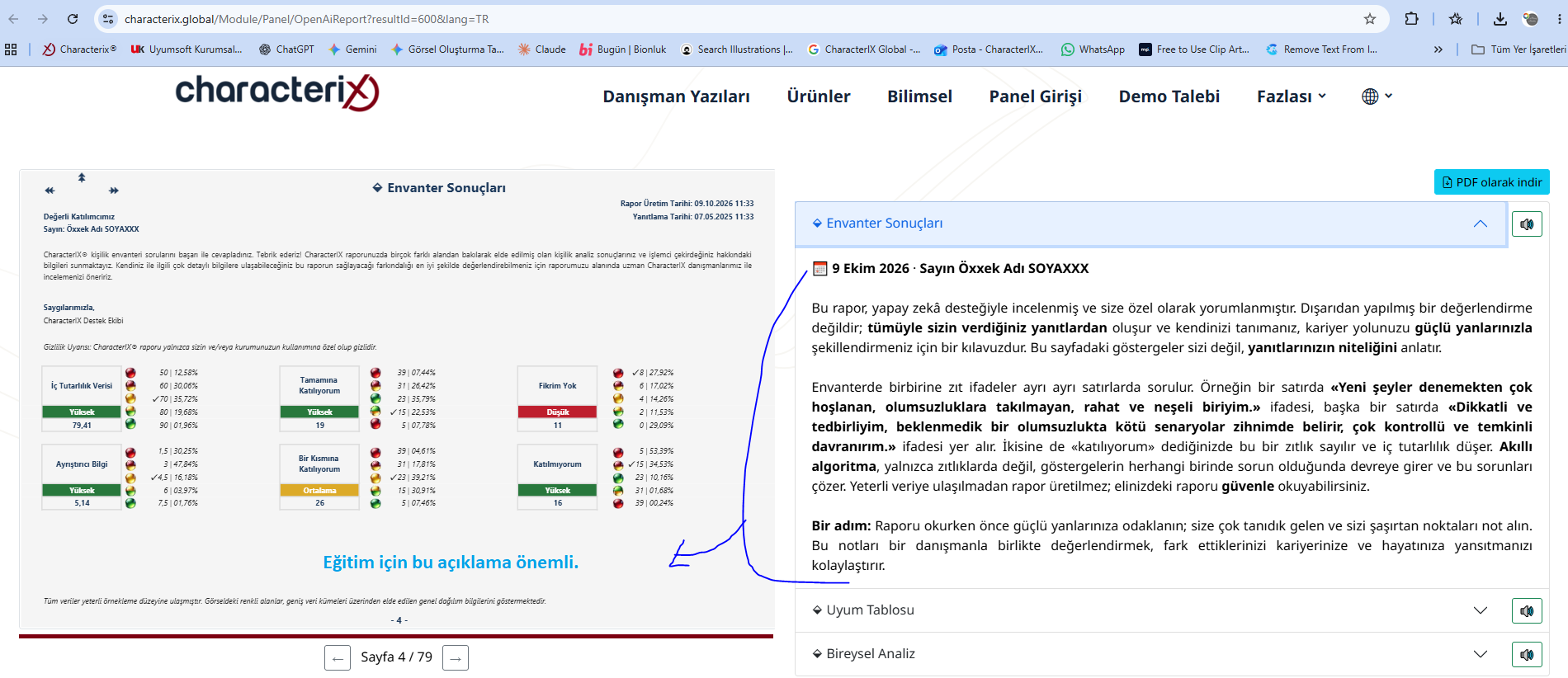
When you open a report, the right side of the screen shows a guidance section explaining how the report should be read. It explains what the indicators mean, how internal consistency is evaluated and how to approach the report.
8Sending the inventory to individuals outside the list
Open the Home page in the panel and scroll down to the Usage Details table. You have two options for each inventory type:
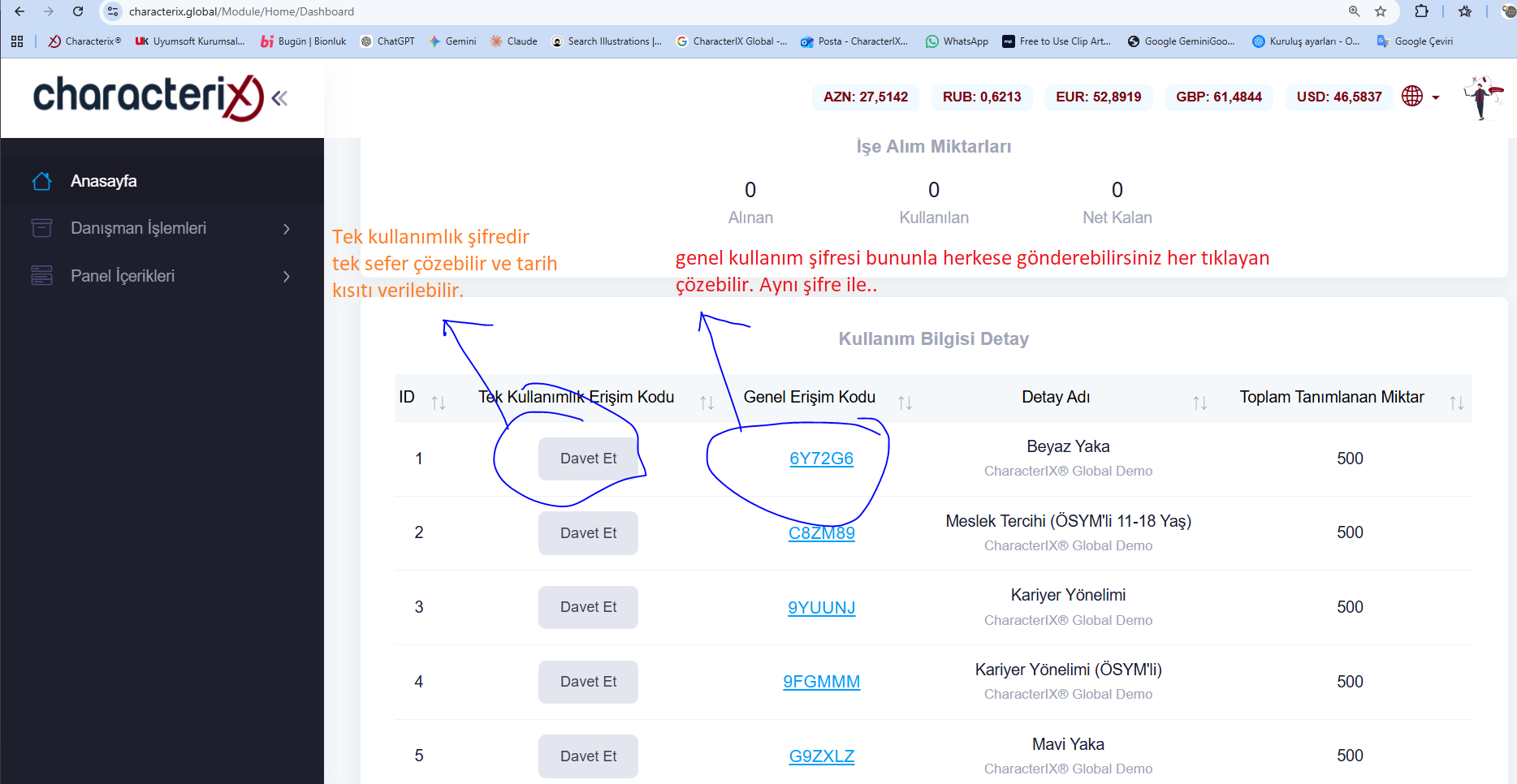
| Option | How it works |
|---|---|
| Single-Use Access Code Invite |
Creates a personal code for a specific person. The inventory can be completed only once, and a date limit can be set. |
| General Access Code Code link |
A general-use code. Anyone who clicks the link can complete the inventory with the same code. |